What Can You Do With It?
Text Expander Keyboard saves you from typing the same things over and over. Here are the most popular ways people use it:
Email Responses
Reply to common emails instantly. "Thanks for reaching out!", "I'll get back to you by EOD", or full email templates.
Customer Support
Handle support tickets faster with pre-written responses for FAQs, troubleshooting steps, and follow-ups.
Form Filling
Save your address, phone number, email, and other details you type into forms repeatedly.
Social Media
Quick replies, hashtag sets, bio templates, and engagement responses for your social accounts.
Scheduling
Meeting requests with dynamic dates. "Are you free on %%DATE +1D%%?" automatically inserts tomorrow's date.
Signatures & Bios
Your email signature, professional bio, or contact info — always one tap away.
Setting Up the Keyboard
Before using Text Expander Keyboard in other apps, you need to enable it in your device settings. This only takes a minute.
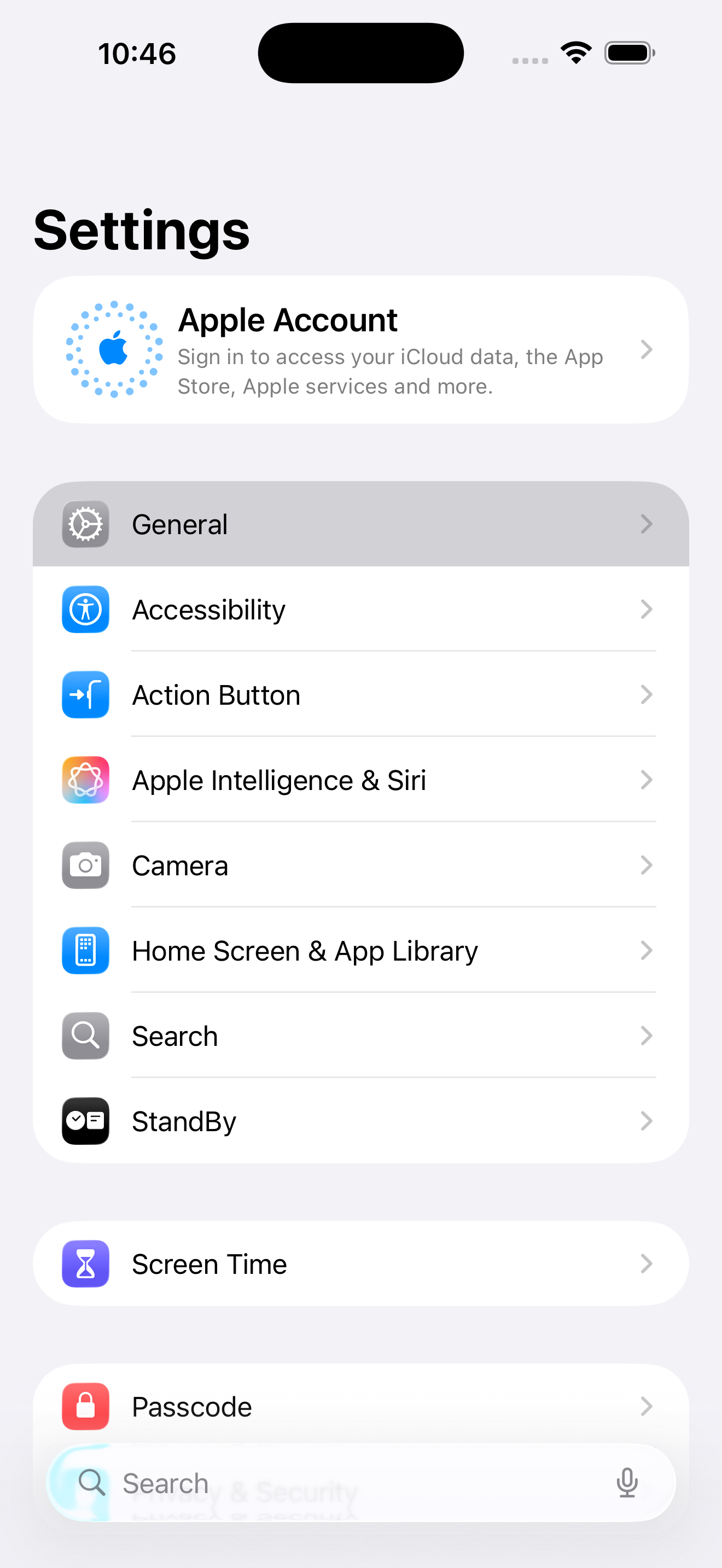
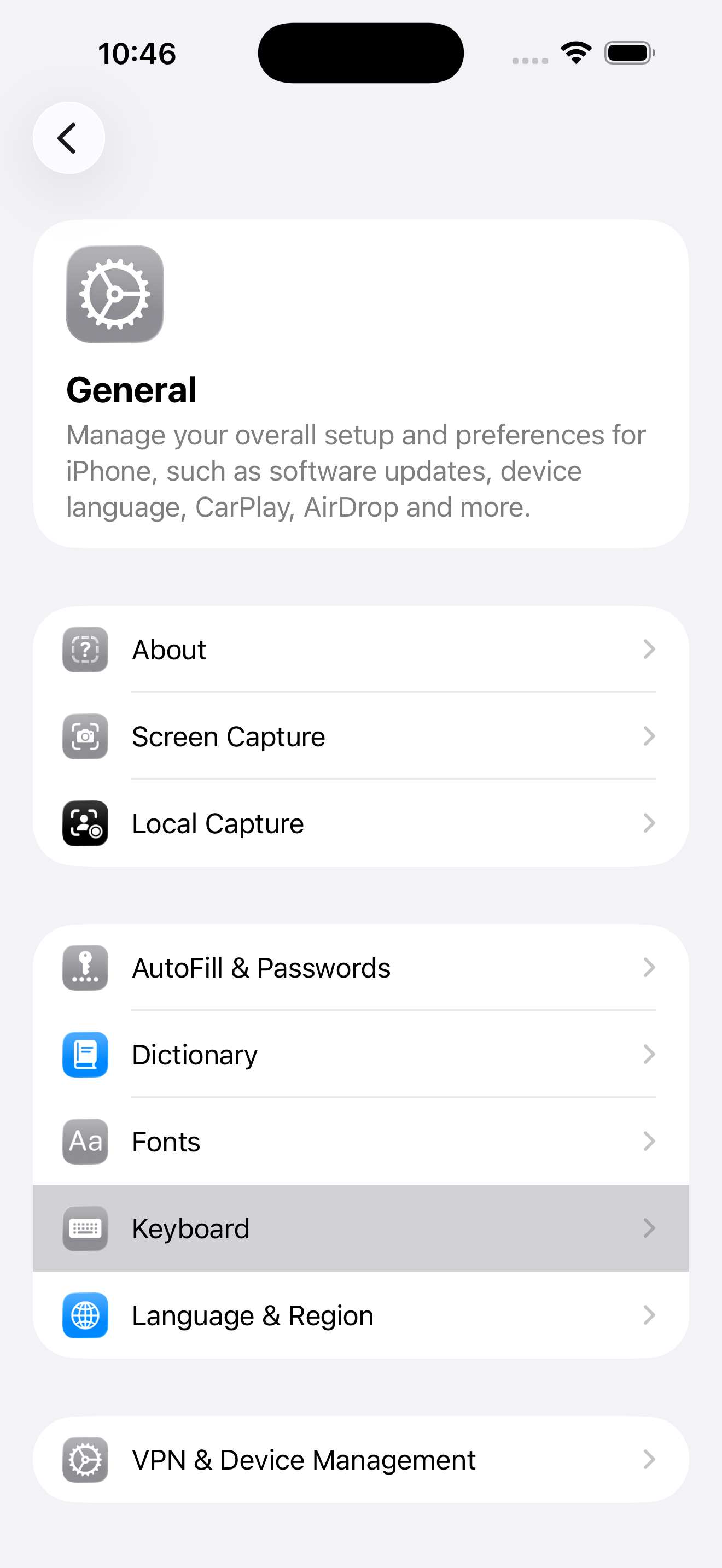
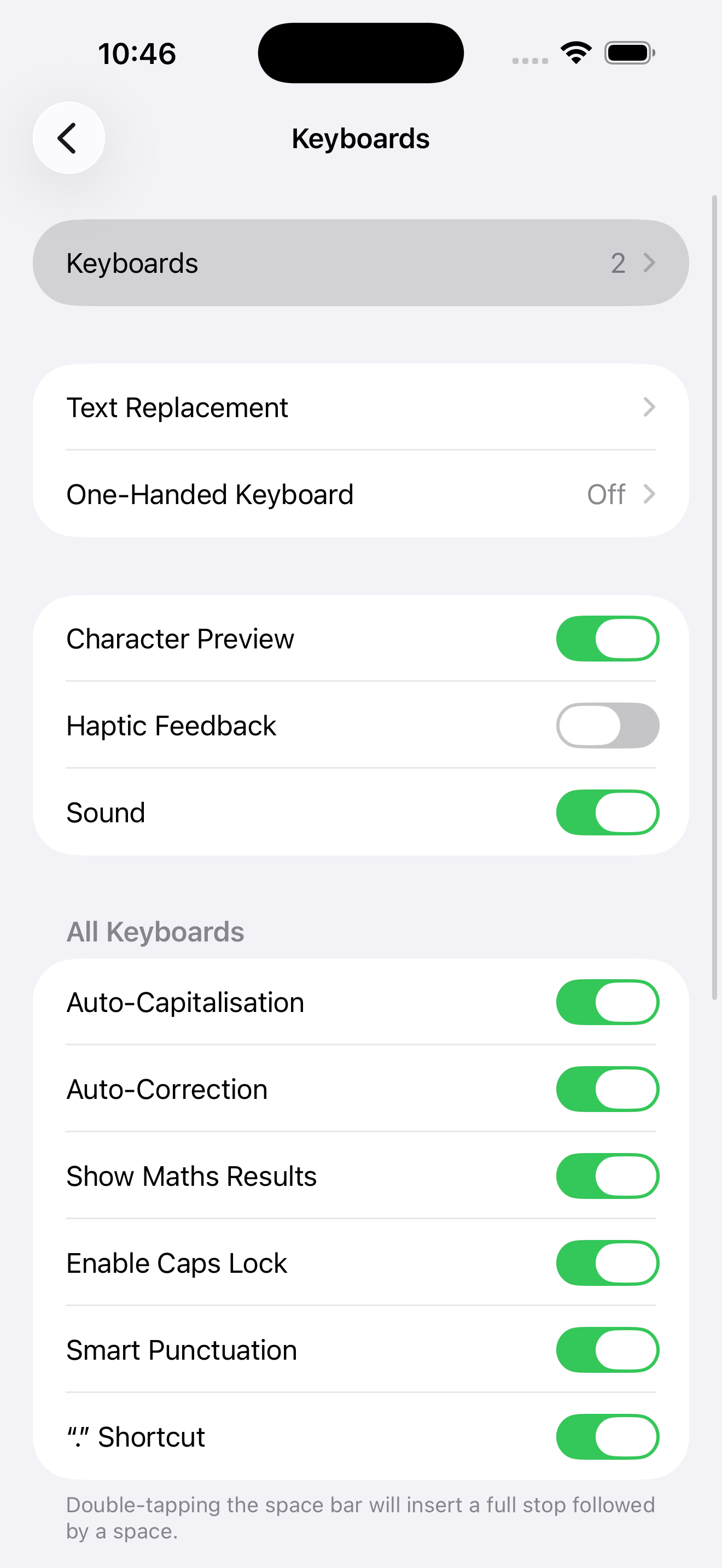
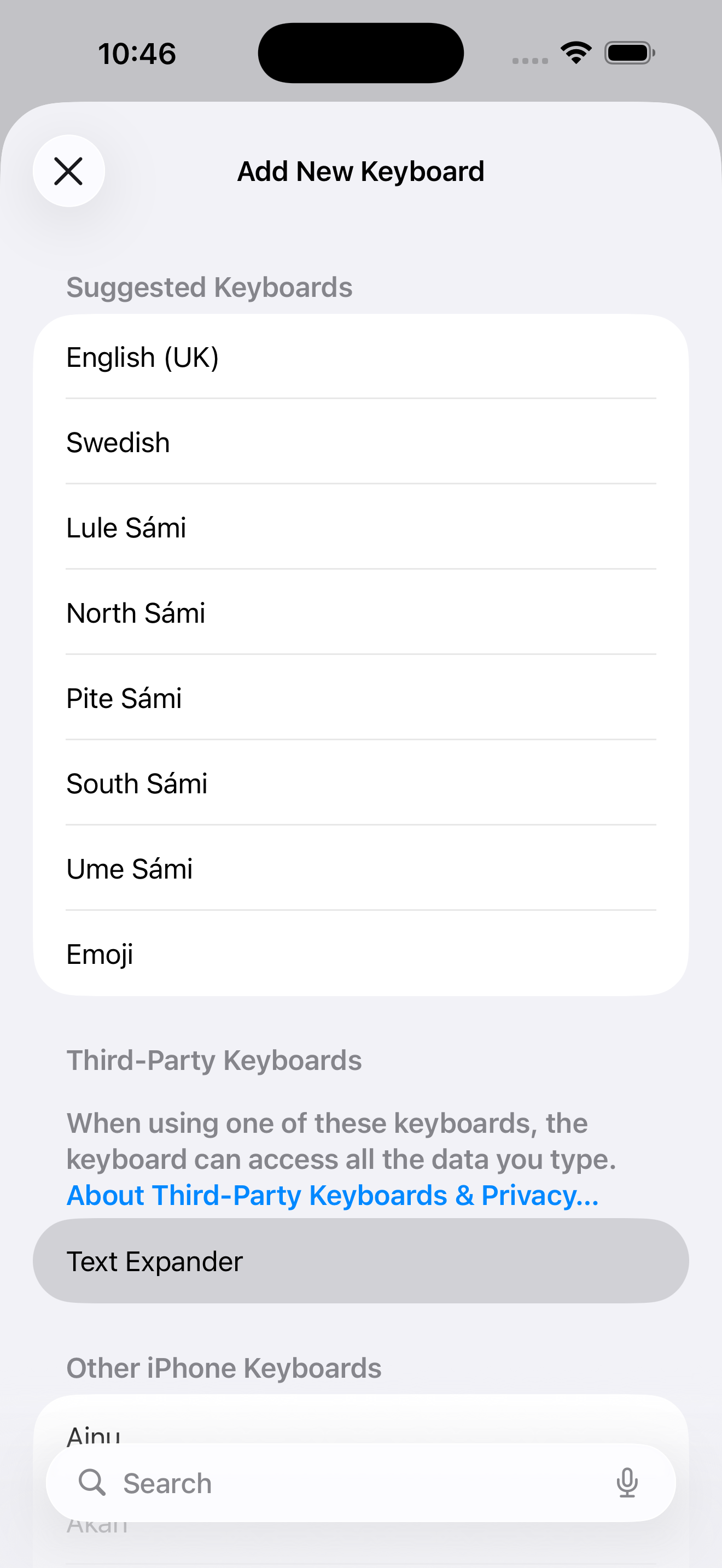
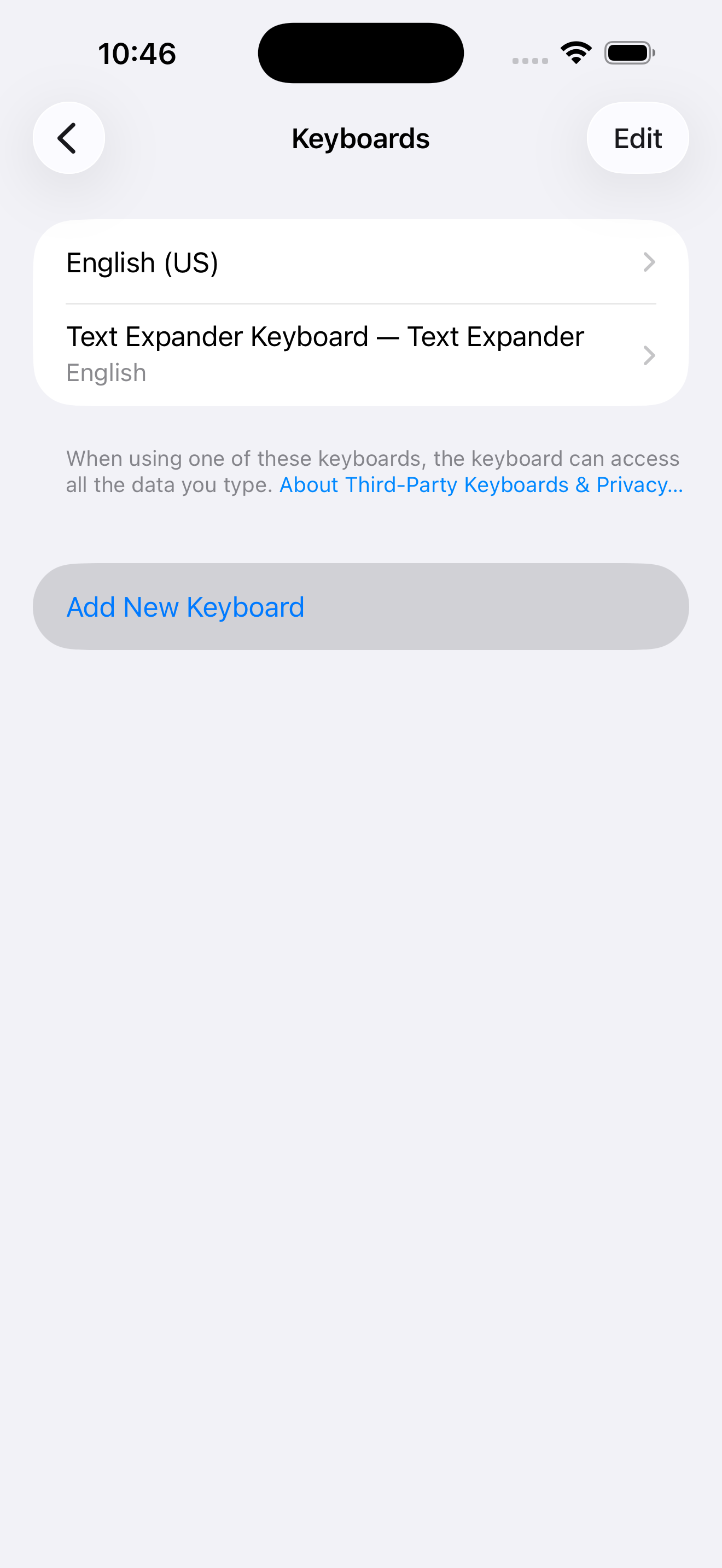
Swipe to see all steps →
Open Settings
Go to your iPhone or iPad Settings app.
Navigate to Keyboards
Tap General → Keyboard → Keyboards → Add New Keyboard
Select Text Expander
Scroll down to Third-Party Keyboards and tap Text Expander.
Enable Full Access (Recommended)
Tap on Text Expander Keyboard in your keyboards list and turn on Allow Full Access.
Full Access enables clipboard integration, image copying, and the auto-paste feature. Your data stays private on your device and is never sent anywhere.
Create Your First Reply
Replies are text snippets you can insert instantly with a single tap. Let's create your first one.
Open the App
Launch Text Expander on your device.
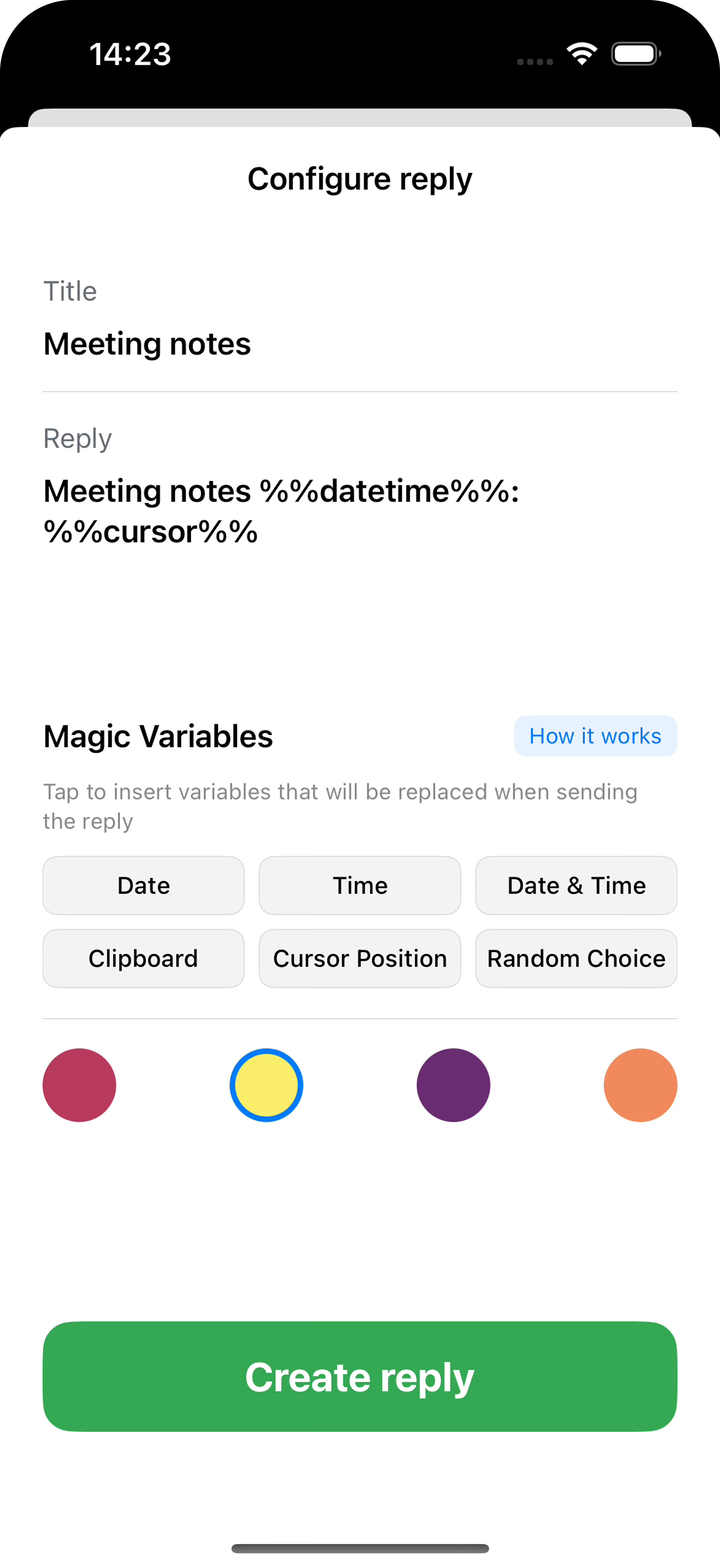
Tap the + Button
Tap the + button in the top-right corner and select Text.
Add Title & Content
Enter a short Title (you'll see this in the keyboard) and your Reply text.
Pick a Color (Optional)
Choose a color to organize your replies into groups.
Save It
Tap Create reply and you're done!
Starter Ideas
Email Signature
Your name, title, and contact info
Address
Home or work address for forms
Thank You
"Thanks for your message! I'll reply soon."
Meeting Request
"When works best for you this week?"
Using the Keyboard
Once set up, you can use Text Expander Keyboard in any app where you can type.
Switch to the Keyboard
Tap Any Text Field
Open Messages, Mail, Notes, or any app with a text field.
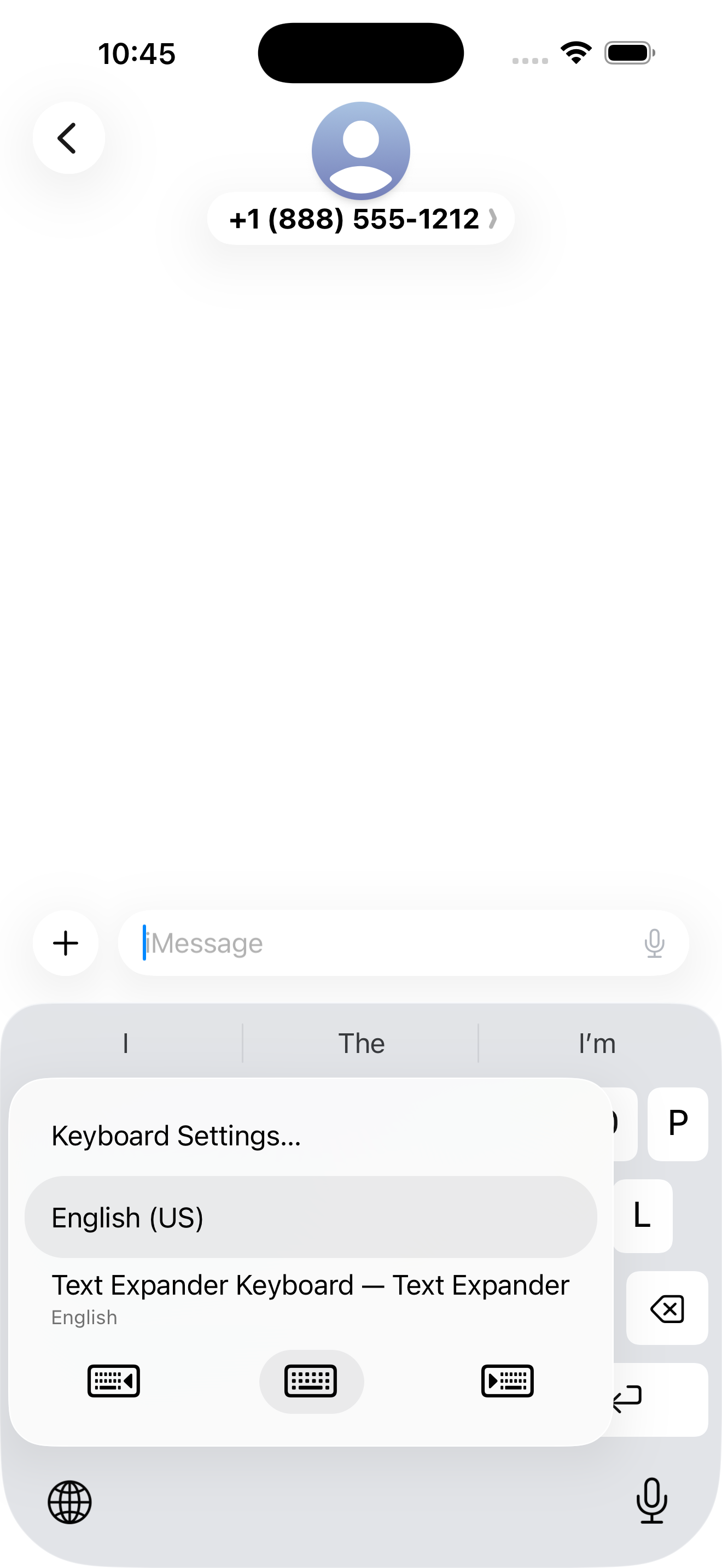
Hold the Globe Icon
Tap and hold the globe icon at the bottom of your keyboard.
Select Text Expander Keyboard
Choose Text Expander Keyboard from the list.
Quick Actions
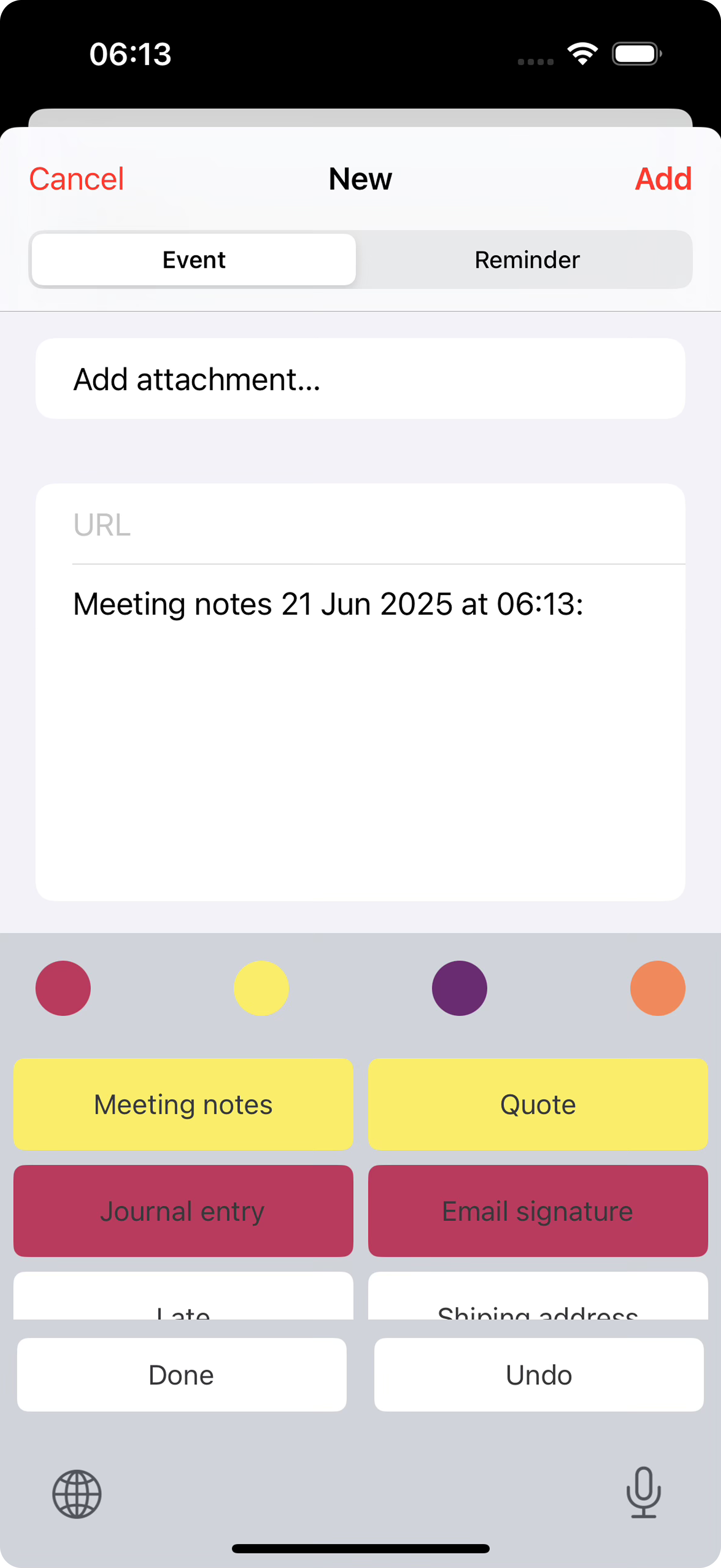
Insert a reply: Tap any reply button to insert it instantly.
Filter by color: Tap a color dot at the top to show only replies of that color.
Undo: Tap the Undo button to remove the last inserted text.
Return to regular keyboard: Tap Done or the globe icon.
Hold down a reply button to auto-paste text continuously. Great for filling out forms!
Magic Variables
Magic Variables are placeholders that automatically become real values when you insert a reply. They make your replies dynamic and smart.
| Variable | What It Does |
|---|---|
| %%DATE%% | Inserts today's date |
| %%TIME%% | Inserts current time |
| %%DATETIME%% | Inserts date and time together |
| %%CLIPBOARD%% | Pastes whatever you copied |
| %%CURSOR%% | Places your cursor here after insertion |
| %%RANDOM:a|b|c%% | Randomly picks one option |
Date & Time Offsets
Need tomorrow's date? Next week? Add an offset:
%%DATE +1D%% → Tomorrow%%DATE -1W%% → Last week%%TIME +2H%% → 2 hours from now%%DATE +30D%% → 30 days from nowCustom Date Formats
Want a specific format? Add it after a colon:
%%DATE:MM/dd/yyyy%% → 01/15/2025%%DATE:EEEE, MMMM d%% → Wednesday, January 15%%DATE:MMM d +1W%% → Jan 22 (next week)Practical Examples
I'm currently out of office and will return on %%DATE +1W%%. I'll respond to your message then. Meeting notes %%DATETIME%%:
%%CURSOR%% %%RANDOM:Hi|Hello|Hey%% there! Thanks for reaching out. Always put a space before the offset: %%DATE +1D%% not %%DATE+1D%%
Organizing Your Replies
Color Categories
Use colors to group your replies. Here's one way to organize them:
Reordering
Drag and drop replies in the main app to change their order. Put your most-used replies at the top for quick access.
Editing & Deleting
Edit: Long-press a reply and select Edit, or swipe left and tap the edit icon.
Delete: Long-press and select Delete, or swipe left and tap the delete icon.
Bulk delete: Tap Edit in the top corner, select multiple replies, then delete.
Image Replies
You can also save images as replies. When you tap an image reply, it copies to your clipboard for pasting into apps like Messages, Mail, or social media.
Import & Export
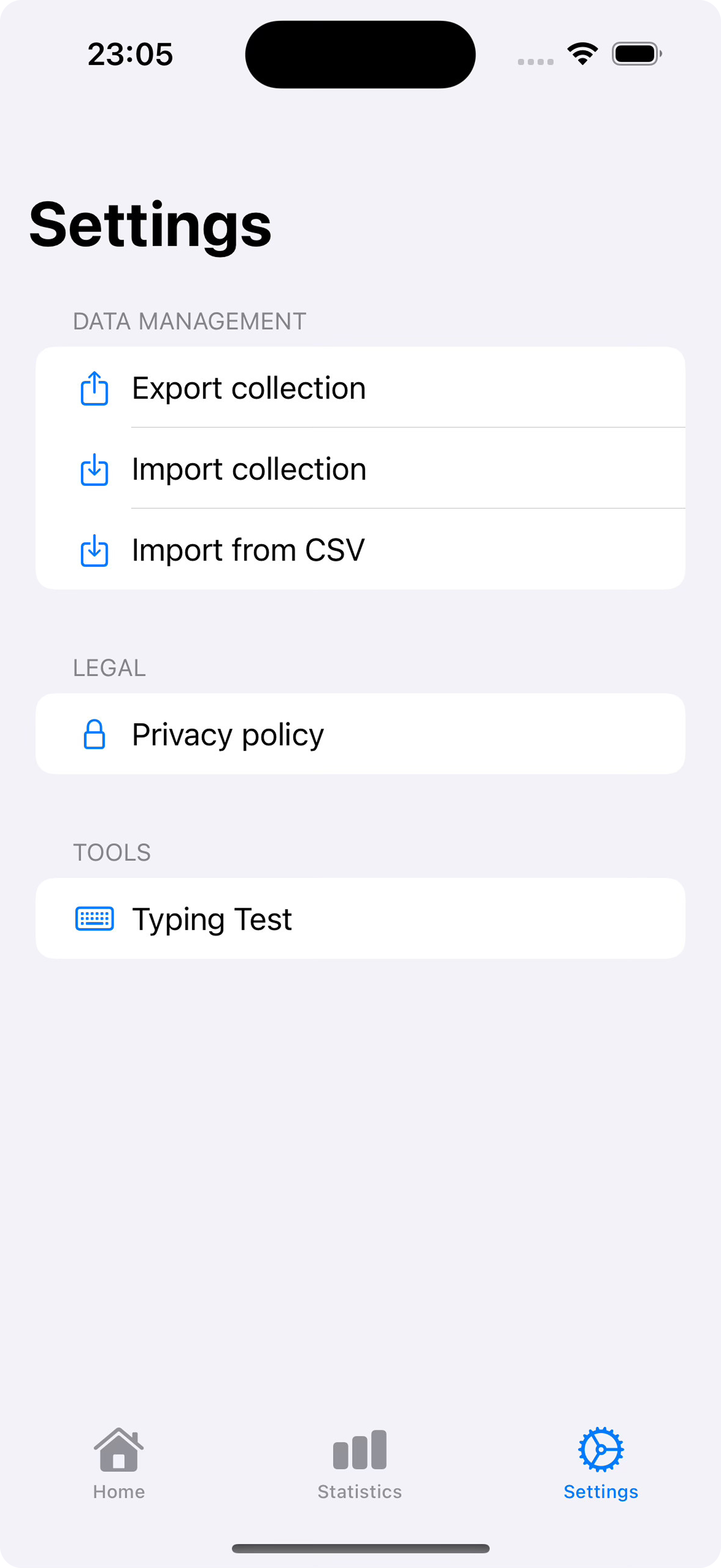
Back Up Your Replies
Go to Settings
Open the app and tap the Settings tab.
Export Collection
Tap Export collection to save a JSON backup file.
Import from CSV
Have a spreadsheet of replies? Import them easily with a CSV file:
title,text,color
Thanks,Thank you for your message!,yellow
Address,123 Main Street,maroon
OOO,I'm out of office until %%DATE +1W%%,purple Use: maroon, yellow, purple, or orange. The color column is optional.
Ready to Type Faster?
Download Text Expander and start saving time today.
Download on the App Store